 Yakka Time
8-hour day
Know when you have worked an 8-hour day
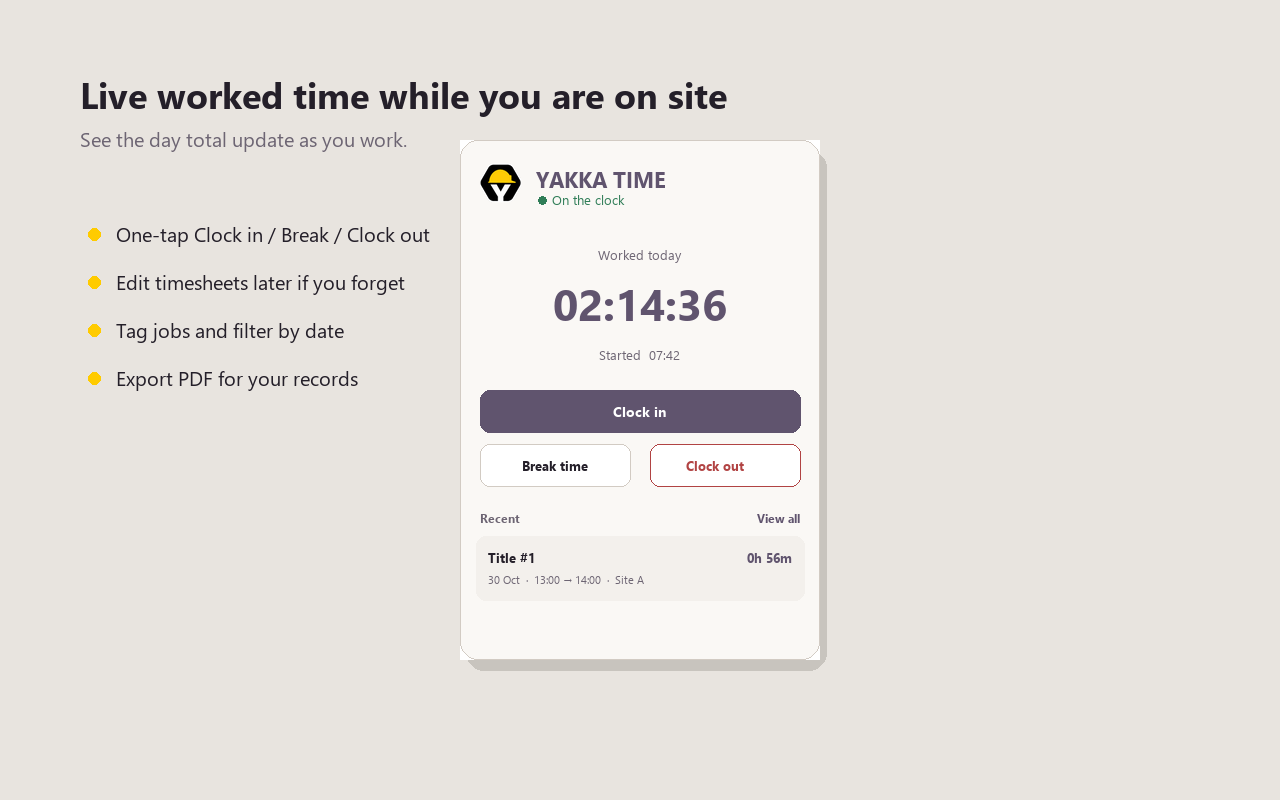
Start at 7:00 with a 30-minute unpaid lunch and you are closer to 15:30 than 15:00. Yakka Time shows worked time as the day runs so eight hours is visible, not guessed. Below you will find a longer walkthrough, AU context, common mistakes, PDF export timing, and FAQs so this 8-hour workday page is useful even before you install the extension.


- Eight hours worked vs eight hours on site
- Plan the finish
- Using this 8-hour workday on real AU jobs
- Full walkthrough: 8-hour workday with Yakka Time
- Mistakes when applying 8-hour workday
- Who this 8-hour workday guide is for
- Yakka Time in Chrome vs the Yakka Labour app
- When to export your 8-hour workday PDF
- Screenshots
- FAQs
Eight hours worked vs eight hours on site
On-site span includes unpaid breaks. Worked hours do not. Watch the live total in Yakka Time if you need to leave once eight worked hours are done.
Plan the finish
Clock in, take Break time for lunch, glance at worked time before you pack up. Edit afterwards if the day did not go to plan.
Using this 8-hour workday on real AU jobs
Guides and calculators only help if they match how Australian shifts actually run: unpaid smoko, late finishes, and pay claims that want decimal hours or a clean PDF.
Yakka Time captures the clock times first. This page on 8 hour workday calculator explains how to turn those times into something you can send without rewriting the week in Excel.
If you hire people as well as track your own hours, use the request form on this page or the Yakka Labour app. The Chrome tool stays focused on your personal record.
Full walkthrough: 8-hour workday with Yakka Time
Install Yakka Time from the Chrome Web Store and pin it beside the tabs you already use for plans, emails or supplier portals. The first time you open it, you are ready to treat it as your 8-hour workday.
When the shift starts, open the popup and tap Clock in. If you stop for smoko or lunch, tap Break time so those minutes do not inflate worked hours. When you finish, tap Clock out. That single loop creates the core of your timesheet line.
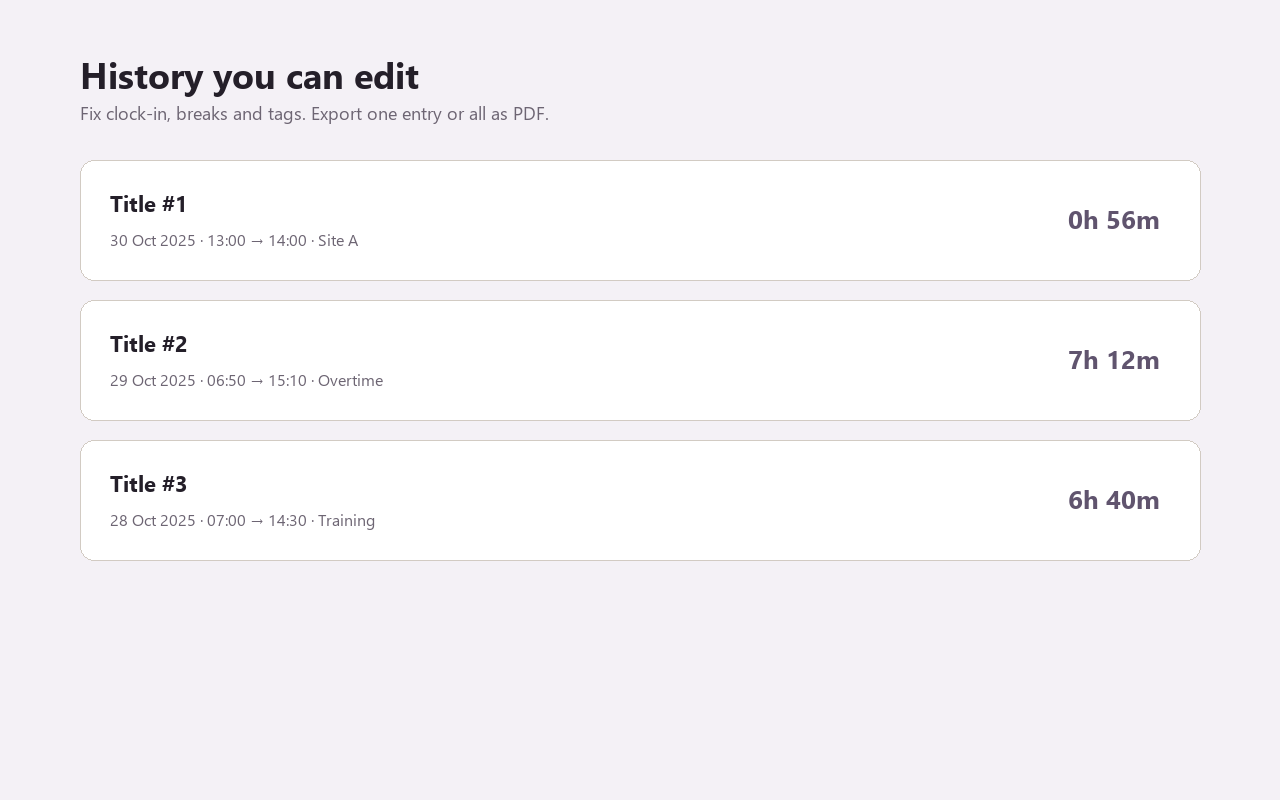
Open History after knock-off. Give the entry a title people will recognise (site address, stage, client, or “overtime”). Add a tag if you will filter later. If you forgot to stop the timer, edit clock-out and break minutes instead of deleting the day.
When you need to send hours, export one entry or the full history as PDF. Email it, print it, or keep it with your records. That is the whole 8 hour workday calculator workflow without a second spreadsheet open on the side of the job.
- Pin the extension so clock-in takes one click
- Name every entry before the week blurs together
- Fix mistakes in History the same day when you can
- Export PDF before clearing Chrome or swapping laptops
Mistakes when applying 8-hour workday
Mixing clock time (7:30 am) with duration decimals (7.5 hours) is the classic payroll confusion. Capture real clock-in and clock-out first, then convert only when the form asks for decimals.
Another trap is exporting before you fix titles and breaks. Spend two minutes in History so the PDF reads cleanly the first time you send it.
For 8 hour workday calculator, treat Yakka Time as the source of truth for times, then do rate maths outside the extension.
Who this 8-hour workday guide is for
Anyone who already tracks shifts in Yakka Time and needs clearer maths, habits or export steps. Also useful if you are choosing a personal timesheet approach and want practical AU framing before you install anything.
Yakka Time in Chrome vs the Yakka Labour app
Yakka Time is the free Chrome extension for your own 8-hour workday. It stores hours in that browser profile and exports PDF when you need a shareable timesheet.
The Yakka Labour app is the hire marketplace on iPhone and Android: pick up shifts, submit timesheets in the app flow, and hire workers when you are the one staffing a site.
Many people use both. Track personal hours in Chrome with Yakka Time. Use the phone app when the work is hiring, rostering or mobile-first shift claims. The request form on this page is for employers who need workers, not for starting the Chrome timer.
- Chrome extension: personal clock-in, breaks, history, PDF
- Mobile app: shifts, hire, on-phone timesheets
- Request workers: labour for a job you need staffed
When to export your 8-hour workday PDF
Export at the end of a day if a supervisor wants same-day proof. Export at week end for ordinary pay claims. Export before you wipe a profile, hand back a work laptop, or switch machines.
If one client or builder only needs their hours, filter by tag or export that single entry. A focused PDF beats a messy dump of every job you touched this month.
Start at 7:00 with a 30-minute unpaid lunch and you are closer to 15:30 than 15:00. Yakka Time shows worked time as the day runs so eight hours is visible, not guessed. Keeping that habit means the export is a checkout step, not a Sunday night archaeology project.
Where your hours live
Yakka Time keeps entries in Chrome local storage on the device and profile you used. It is a personal 8-hour workday, not a cloud payroll ledger that every manager can open.
That is why exports matter. PDF is your durable copy. If you clear site data, switch profiles or retire a laptop, export first. Treat History as working memory and PDF as the filing cabinet.
Keep going on 8-hour workday
Use the related links at the bottom of this page for neighbouring guides in the Yakka Time cluster. The hub at /yakka-time/ lists core tools, industry pages and calculators so you can move between topics without losing the install CTAs.
If you came here searching for 8 hour workday calculator, start with the walkthrough above, install the extension, then skim the FAQ for edge cases like missed clock-outs, overtime tags and multi-site weeks.
See Yakka Time in Chrome
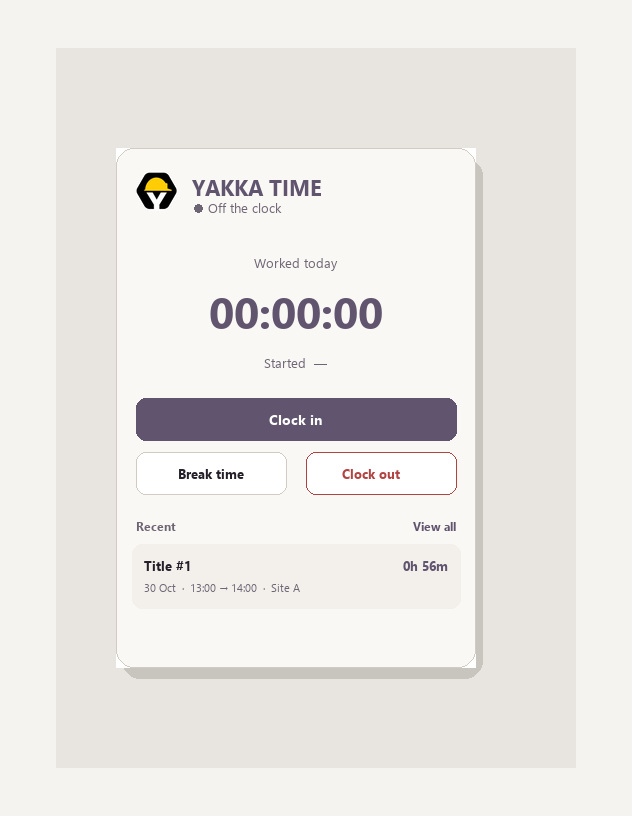
Real screenshots for 8-hour workday: timer, live hours and editable history.
8-hour workday FAQs
Is every job an 8-hour day?
No. Many casual and trade days differ. Use the tracker for whatever length you actually work.
Does it alert at eight hours?
There is no alarm. Check the running total when you are near knock-off.
Overtime past eight?
Keep the timer running, then tag overtime when you clock out.
How is Yakka Time different from a spreadsheet 8-hour workday?
Spreadsheets rely on you typing hours later. Yakka Time starts from a live clock-in, stores breaks, and exports PDF from History so you are not rebuilding the week from memory.
Can I use this 8-hour workday on more than one site in a week?
Yes. Clock out when you leave a site, clock in at the next, and use titles or tags so each job stays separable when you export.
What happens if Chrome crashes mid-shift?
Open History when you are back. If the entry looks wrong, edit clock-out and break minutes to match what actually happened, then export PDF once it is clean.
Is Yakka Time suitable only for construction?
No. Construction is a big audience, but warehouse, cleaning, hospitality, trades and general casual work use the same clock-in and timesheet flow.
Do I need an account to keep a 8-hour workday?
You install the Chrome extension and use it on that browser profile. Hours stay local until you export. Hiring workers through Yakka Labour is a separate flow.
Can my employer force this extension?
Yakka Time is a personal tool. Workplaces may still require their own clock. Keeping your own PDF record is still useful when systems disagree.
Does this page replace the Chrome extension?
No. This guide explains 8 hour workday calculator. You still install Yakka Time to capture clock times, then apply the steps here when you total or export hours.
Install Yakka Time
Free on Chrome for personal hours and timesheets. The Yakka Labour app covers shifts, hire and timesheets on your phone.